When a PDF Is a Picture of Text
Something that looks clear on a scanned page can be invisible to search. What a PDF shows, what it stores as text and what it reads aloud are separate matters.
In this story 4 sections
A colleague sends a document with the note “The address is on page twelve.” You search for the street name and get nothing. On page twelve, there it is, upright in black letters, easy to see. It is a familiar little irritation that tells you surprisingly much about a file. The PDF has faithfully delivered a view of the page, at least to your eyes. It has not necessarily delivered a sequence of letters that software can find. A scanner may have given it only the equivalent of a photograph.
You can learn to distinguish that failure from others. In one document a search for almost any distinct printed word fails. In another, search finds every use of a person's name but the critical one with a fold through the page. In a third version of the document, a program can find all the words yet read a column of unrelated prices in the middle of a sentence. Telling these cases apart matters if a document has to remain useful on its own after the person who made it has gone.
Look at what the scanner was asked to keep
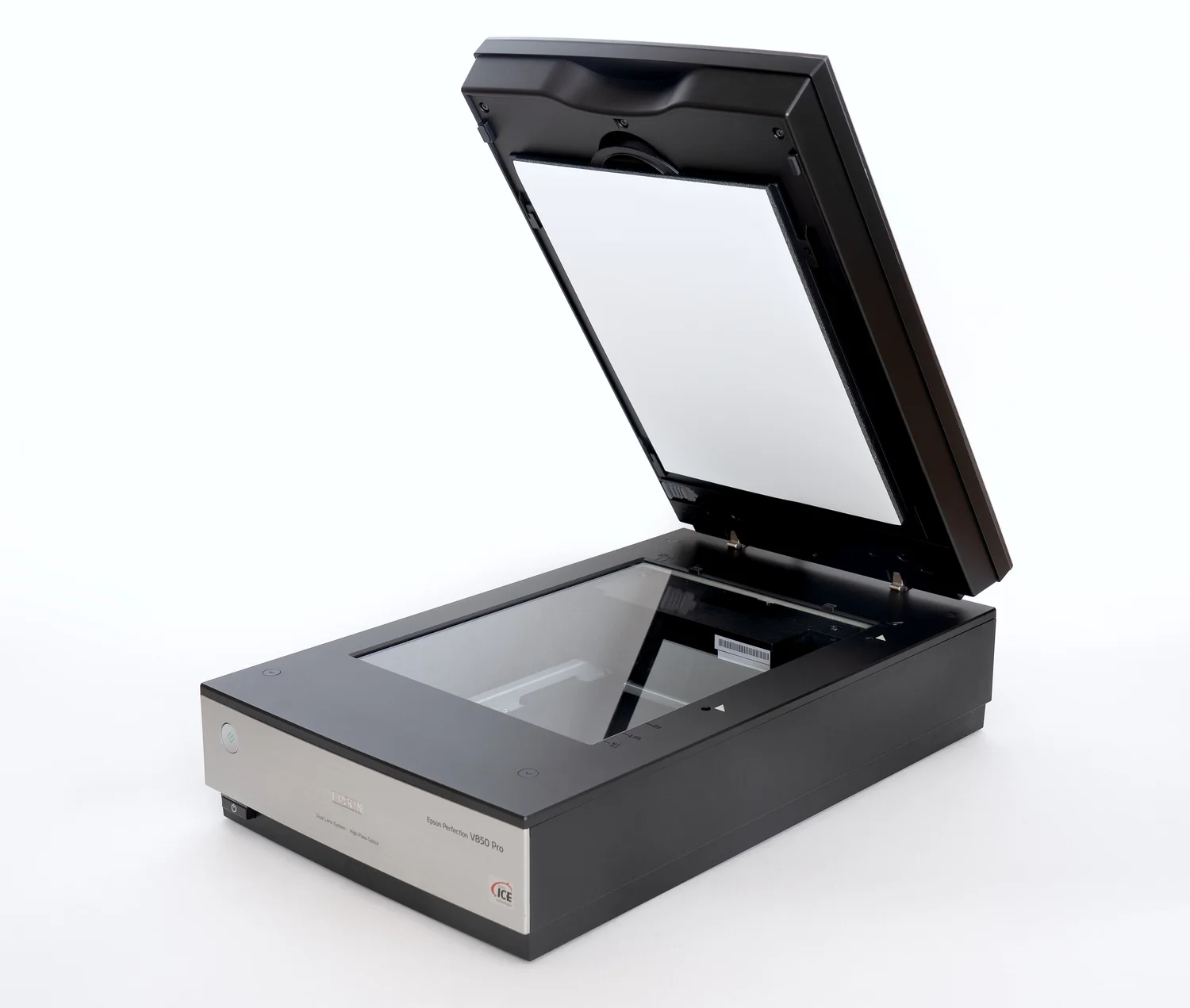
A flatbed scanner builds an image of a surface. Ordinarily that image is a rectangular arrangement of tiny samples of color or brightness. The space a single letter occupies can consist of a few darker regions and a background. A scan does not have to decide whether a vertical stroke belongs to a capital I, a lowercase l, a numeral 1 or a crack in the paper. You decide with practiced ease, usually by reading the rest of the word. The scanner can deliver a fine grasp of the ink’s physical appearance without sharing any of that knowledge of letters.
The PDF can contain the image and present it on a page. Because the result looks like a document, readers often assume it behaves like one produced by laying out text in a word processor. A quick distinction can be made by trying to select a few words. When software recognizes no selectable letters, a selection might take a rectangular piece of the image or refuse to follow the letters at all. This does not diagnose every file: certain settings and viewers can limit selection. Try a few different parts before concluding that all the pages are images with no corresponding text.
A mixed document is particularly instructive. The cover letter may have come from a word processor. An enclosed certificate might exist as a scan. A third attachment could be a scan that has already been through a recognition program. All three can occupy successive numbered pages in the same sturdy-looking PDF. Test one representative part from each source when assessing it. A search that succeeds on a covering note and silently misses the attachment can be misleading precisely because the first result tells a reader that the search function works.
A reading fitted to the image
Optical character recognition, or OCR, makes a computer interpret some printed or written marks as characters. In producing a searchable scan, software can store the interpretation in a text layer aligned with the image. The result can look much as it did before, because the visible words still come from the image while searchable text sits at the appropriate positions. Adobe’s documentation describes reviewing and correcting uncertainties like this: the picture can show one word while the searchable character sequence holds some other best guess until corrected.
Try a modest test with a document you are allowed to use. Pick one distinctive address, a word with a dash at the end of a line and another that has a character easily confused with a numeral. Try to find each, then select around them and inspect the copied text in a plain editor. You may see believable errors that your eye completely overlooked when reading the image. Do this with an unambiguous word as well. If the ordinary word works and one from a damaged part fails, you have found a different problem from having no searchable layer.
Compare two adjacent columns if there are any. A person can usually tell which sentences belong to an account and which belong to the advertisements beside it. Copy all of one paragraph and see what arrived. If a sentence keeps acquiring a lonely number from the next column, the problem may involve the ordering or layout of recognized material. Better recognition of individual glyphs will not necessarily repair it. The software needs to understand which region comes next for a reader as well as what each region says.
The Library of Congress gives guidance for viewing the files available through Chronicling America, where newspaper pages and machine-readable text offer different views of historical documents. A search across digitized pages can accomplish work that would be inconceivable with a stack of originals. Where a reference is important, go back to the surrounding image and read it there. An oddly plausible person’s name in extracted text can be the result of a recognition mistake. The newspaper image, despite its own limitations, gives another kind of evidence.
A visual fix is not always a reading fix
Turn a visibly tilted page so it reads comfortably. That change can make work easier for a person and may help a recognition program. It does not correct the letters already stored behind the old image if software does not process the page again. Similarly, improving appearance on one layer can change the outcome at the other in an unexpected way. A very aggressive threshold can make a page feel cleaner while removing light marks from its small type. Keeping an original scan gives you a way to return to information that a visually helpful treatment discarded.
The opposite difficulty arises when a text correction does nothing to the face of the page. Someone can fix a misspelled name in the searchable layer and leave the image looking exactly as before. That is desirable if the image is being preserved as a record. If the visible spelling itself was wrong and the document is meant to carry a published correction, the two tasks need careful labels. A readable record of the original report and a corrected version for distribution are distinct deliverables.
Use a short note when preparing a derived file. Record whether the recognition is an unreviewed machine interpretation or has been checked against the original. Say whether changed order or headings have been supplied for a reader. Do not describe a selected paragraph as a certified transcription just because it pasted successfully. Searchability is often worth providing even if few resources are available for copy editing. Readers benefit from knowing which kind of reliability the person preparing the file was able to establish.
Magnification provides another clue. A large letter may look crisp because the viewer is presenting the original vector text, or because the scanner captured enough detail that the pixels are still small at this scale. The two images can look deceptively similar. The outcome of selecting, copying and searching a couple of words is a better test of whether a particular word exists in a form the program can handle.
Test the route someone needs to take
A PDF that contains text need not be a well-structured document. Readers navigating by headings, reading in order with assistive software or trying to learn what an image means may need information that a layer of recognized letters does not provide. A table, for example, may need coherent relationships between values and their headings. When those relationships were conveyed only by place on a printed sheet, a computer can often collect all the right numbers and still present them in an order that misleads. A few realistic tasks tell you more than checking whether there is any selectable text at all.
Start with what the file has to do. A searchable facsimile of a short historical handout makes reasonable use of a clean image accompanied by a checked text layer. A set of forms people must fill in and return has other requirements. A record containing several important names may justify checking every occurrence rather than taking a sample of the perfectly printed main text. In each case, compare the result against the task. Try opening the first heading, jumping to a page, finding a claim and following a table value back to its column name.
When sharing a document with both an image and searchable text, be attentive to what both carry. Drawing an opaque box over a visible word does not necessarily remove the underlying text or the image material from the PDF. In an authorized task involving private records, use an appropriate redaction process and verify in a copy that hidden information is actually gone before sending it. A carefully preserved archival file and one safe to distribute can be two different files. The same layers that make search helpful can carry information a simple look at the result never shows.
There is a satisfying final check for the first little irritation. Copy the full street name from the result after running and reviewing recognition; paste it elsewhere and look at the spelling. Then go back to the actual page and make sure the surrounding context connects that address to the person or event you meant. The software can take you there. The image provides a chance to read what is there for yourself. Being able to do both with one document is the convenience that a plain photograph of page twelve could not deliver.