What a USB-C Cable’s Shape Cannot Tell You
Two cables with the same plug can be rated for different jobs. Read the power, data and display specifications separately before blaming a device or replacing a dock.
In this story 5 sections
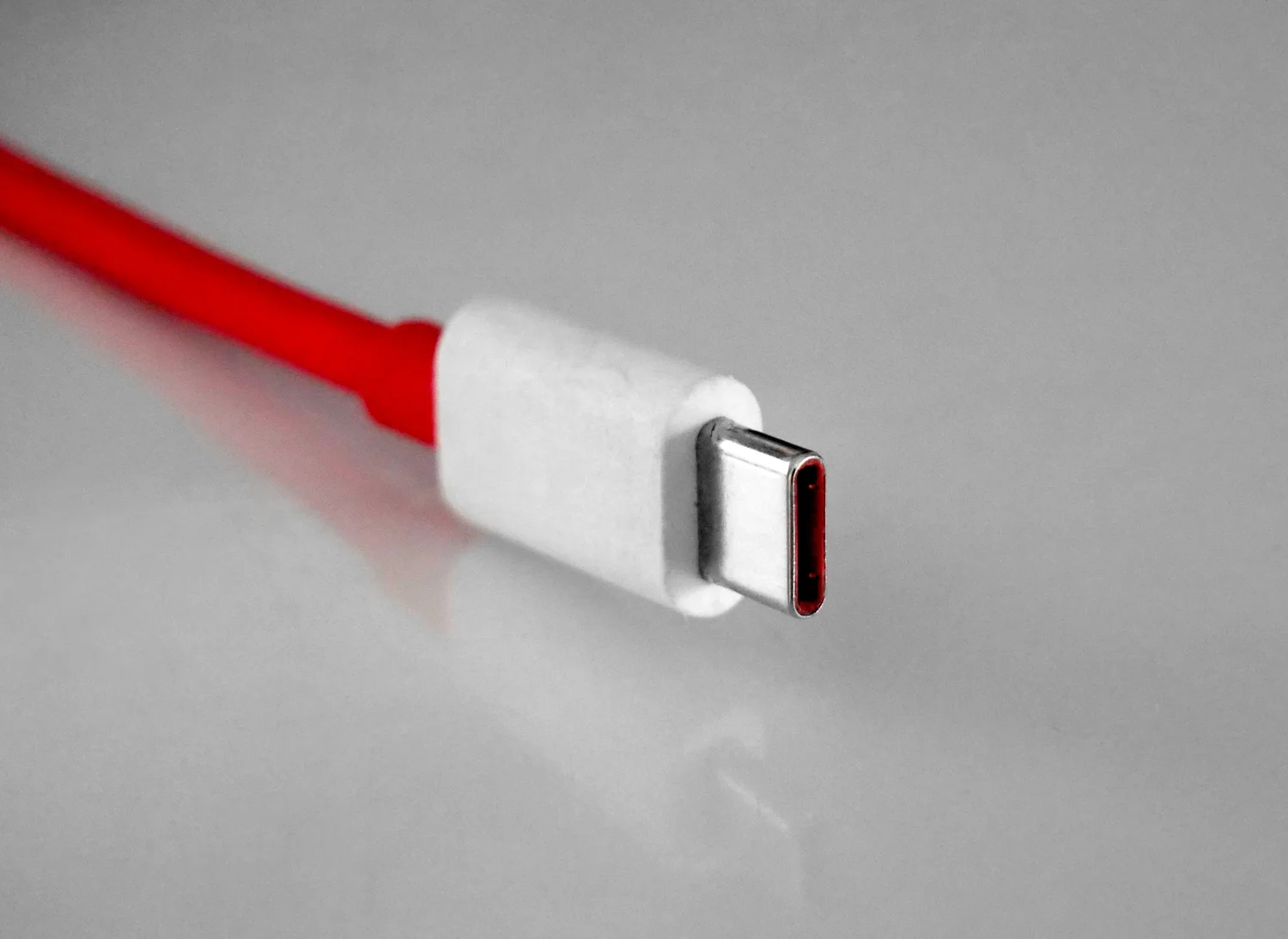
Two cables occupy the same place in a drawer and have plugs that fit the same laptop. One charges it, connects the external display and carries files to a drive through a dock. The other charges it and leaves the display dark. A third might let the drive connect and still produce an unexpectedly slow transfer. You can spend a long time looking at the metal shells without finding a visible explanation. The connector describes how things fit together. The jobs the connection can do depend on what the ports and cable support beyond that shape.
USB Type-C is the name of a connector and cabling system. The USB Implementers Forum publishes specifications for it as well as guidance on how to describe data rates and cable power ratings. Those distinctions are useful to someone borrowing a cable at a desk. “USB-C” helps locate the right sort of opening. It leaves several questions to be answered about what happens after it is plugged in. An effective comparison starts with the job you intend to do, then checks the path needed to do it.
The connection includes at least three pieces
Start with one computer, one cable and one peripheral. Describe what each piece is capable of supplying or receiving. For a charging example, the source can offer power under defined conditions, the device can ask for an amount it can use, and the cable has a rating. A high number on one label cannot make every other piece ready to operate at that number. Even a compatible charger and cable do not guarantee that the receiving device will take the maximum at every moment, because its own condition and request matter.
For a data transfer, the equivalent questions involve the USB mode or other supported protocol at both ends and the abilities of the cable. A fast external drive connected through a path that supports only a slower mode can still work. A person first noticing the delay may assume the drive itself is defective. Test the same transfer once with the cable intended for that drive and once with the suspect cable. Make sure the copy is really using the same source and destination and is large enough to measure clearly. A speed difference may help identify a limiting part of the route without proving the other pieces are perfect.
A dock expands the number of places where a difference can arise. One cable reaches the computer. Other connections link the monitor, drive and power source to the dock. If all of it worked yesterday, a cable changed at a convenient point can affect only some of those jobs. The most useful diagram draws the public path in full: power source to dock, host cable, downstream connection and the devices themselves. When you find the first part you can exchange without changing the rest, you have a sensible place to begin a comparison.
Look for a separate statement about video
A laptop can accept power through a USB-C shaped port without offering the same display features through every port of that shape. Some systems carry a display signal through a mode supported by the host, accessory and suitable cable. Other arrangements use different technology to produce the image. Identify the kind of connection the display or dock expects and look at the computer’s own port description. A cable advertised only with a charging rating gives no direct answer to that display question.
If the display is dark, try establishing just the relevant link where the manufacturer’s instructions allow it. Remove layers from a known configuration carefully. A direct monitor connection using the intended cable can establish that the monitor and laptop can cooperate under those conditions. Another test through the dock can establish the effect of adding that path. Retain differences such as which port you used and which power source was present. Working on the left port and failing on the right can be evidence about the two ports. Changing the cable and the port together makes that comparison less useful.
Turning the plug around is normally a convenience of Type-C. A device behaving differently in the two orientations under otherwise similar conditions can be a reason to inspect for a damaged or contaminated connection and consult the equipment maker. Orientation is a poor way to choose a permanent workaround for a suspected fault. A note about the port, accessory and exact symptom makes the question easier for someone else to reproduce without repeatedly trying an unknown combination.
Numbers on packaging belong to particular properties
A rating in watts describes a power capability under appropriate conditions. A rate in gigabits per second describes a data capability. The numbers cannot substitute for one another even if both appear next to a single logo or on the same box. USB-IF publishes marks and terminology to help distinguish them. When reading a shop listing, match each number to the product it actually qualifies. A dock may advertise a particular rate for one of its connections while another port serves a different purpose. A bundle can contain a cable whose own rating is given separately from the device.
Read a speed as a capability, then compare it with the transfer you actually perform. Storage, the application and the other end of the copy can prevent the connection from using all the capacity named on a package. Conversely, a slow cable, port or mode can hold back suitably fast storage. If diagnosing a transfer, use the same file and endpoints first. A numerical result gets more useful when it can be compared with the same test on a known cable. Mixing a cloud download with a local file copy is a quick way to test many unrelated things at once.
A charging label also takes some context. A particular cable can be rated for use up to a given power when the rest of the system supports the appropriate arrangement. It cannot decide what the computer will request or whether an available charger is currently sharing capacity across outputs. If a setup is safe, meets the device maker’s guidance and charges more slowly than expected, compare the results with the same device and known suitable power source. Look for a change at one point in the setup before buying more equipment.
Keep a description beside the cable that worked
If a cable came with a device, save or note its identification as soon as you know what job it does. Keep ordinary labels short enough to remain useful in the drawer. For example, distinguish an identified cable used for a particular monitor from a spare whose only demonstrated job was charging. An unmarked cable may still support more than you have tested. Your label should describe the evidence you have, including which device worked, rather than declaring a universal specification based on memory.
For a new purchase, write the actual task before searching. “Laptop to this monitor, including charging,” “wall adapter to reader,” and “fast local drive to this port” are different requests. Compare the manufacturer’s stated compatibility and the cable’s explicit ratings with each request. An appealing plug shape and the fact that it physically fits answer a question that takes only a second to test. Keeping the more important questions visible makes the next connection much less mysterious.
Work through one failure from start to finish
Suppose you have a laptop that normally uses one cable to a monitor with a built-in hub. After replacing the cable, the laptop shows it is charging while the monitor reports no image. Record the monitor input and the laptop port. Restore the original cable without changing either end of the path. If the image returns, the two cables or their condition are the next things to compare. If it does not, the replacement may have coincided with another change and the working reference needs to be re-established. The effect of restoring a known arrangement is stronger evidence than the fact that the battery indicator moved.
Once the expected display works, try the downstream device separately. Suppose an external drive connects through the same hub but seems slow. A screen working is evidence that a display path was established; it gives no precise data speed for the drive. Check which downstream port has been used, then compare with the same file using a port and cable described for the drive. A transfer that stays slow in both conditions may be limited elsewhere. One that changes substantially helps narrow the search. In the record, put each observed result beside the job you were actually testing.
If several people share the workstation, make the reliable arrangement easy to repeat. Label the host cable with the location where it belongs, and keep information about the chosen port near the dock. Record the power source along with the cable if both are relevant. For equipment supplied or approved by an employer, follow its own support instructions. A future user can then distinguish a substitute with unknown capabilities from the cable known to support the intended arrangement. A minute spent returning the parts to the same places can save someone much more time trying to diagnose three perfectly functional devices that happen to be connected in a less useful way.
A photograph of the complete setup can help locate the original ports. Keep the actual capability labels as well, since those are often invisible in the photograph.