Why an Optical Mouse Loses Its Place on Glass
The mouse measures how the surface below it seems to move. Glass can deprive its sensor of useful detail, while software settings can make a different problem feel much the same.
In this story 4 sections
The pointer moves cleanly on a notebook. A few centimetres farther along the desk, on a clean sheet of glass, the same movement sends it in short jumps or leaves it still. The mouse is still connected. Its buttons may keep working, and whatever lights it normally shows may remain lit. That combination gives you somewhere useful to start. Movement is a separate measurement from a button press. For an optical mouse, the measurement depends in part on what the inside of the device can see through its aperture.
A typical optical navigation sensor records small views of the surface very rapidly. Its light source and lens help form the view. The electronics compare successive observations and estimate how far the pattern of detail has moved. An Avago data sheet for an example navigation sensor describes an image acquisition system, a digital signal processor and a way for the device to report the measured movement. The details vary by design. The general arrangement explains why a stationary desk can be a component of tracking even though there are no moving parts in the sensor.
The sensor keeps a very small window
Draw a small square on a clear sheet and move it over a newspaper photograph. You can follow the movement by noticing which features that were near one side of the square appear farther towards the other side in the next view. The mouse’s measurement is related to that observation. It needs detail that remains recognizable for a short time as its view changes. Dust on the surface, fibres, small bumps and tiny variations in reflection can all give a sensor something to follow. Texture visible to the device can be too fine to look distinctive at the scale of a whole desk.
Some surfaces present a difficult version of that task. A clear sheet of glass may show little structure where the sensor expects a view to be in focus. Light can pass through or reflect in ways that leave the local image with too little useful contrast. Turning the mouse sideways changes the direction of motion through this view. It usually cannot create stable surface detail where there was none. A printed pattern underneath a glass top can also be at the wrong distance for an arrangement designed to focus on the plane under the mouse’s feet. The visible picture at human eye level and the tiny image available to the sensor are different views of the desk.
Putting matte paper over the glass changes several things at once in a helpful way. There is a surface close to the intended focus, it has fine detail, and it reflects enough light back into the device to be useful. You can see a convincing difference before knowing whether the previous failure was mainly focus, contrast or reflection. A different mouse designed to use details on glass may behave well on the same top. The reliable comparison is between a specific mouse and a specific surface, with the other settings left in place.
Make the failure repeat
Open a blank area or a simple drawing app. Move the mouse in a straight strip on matte paper and repeat the same motion where you noticed the fault. For a better comparison, use an object sitting beside the path as a rough guide to the hand’s distance. The point is to see whether the cursor travels consistently, stalls during part of the stroke or jumps at a particular patch of desk. A slow single movement can provide better evidence than drawing circles while alternating surfaces and speeds.
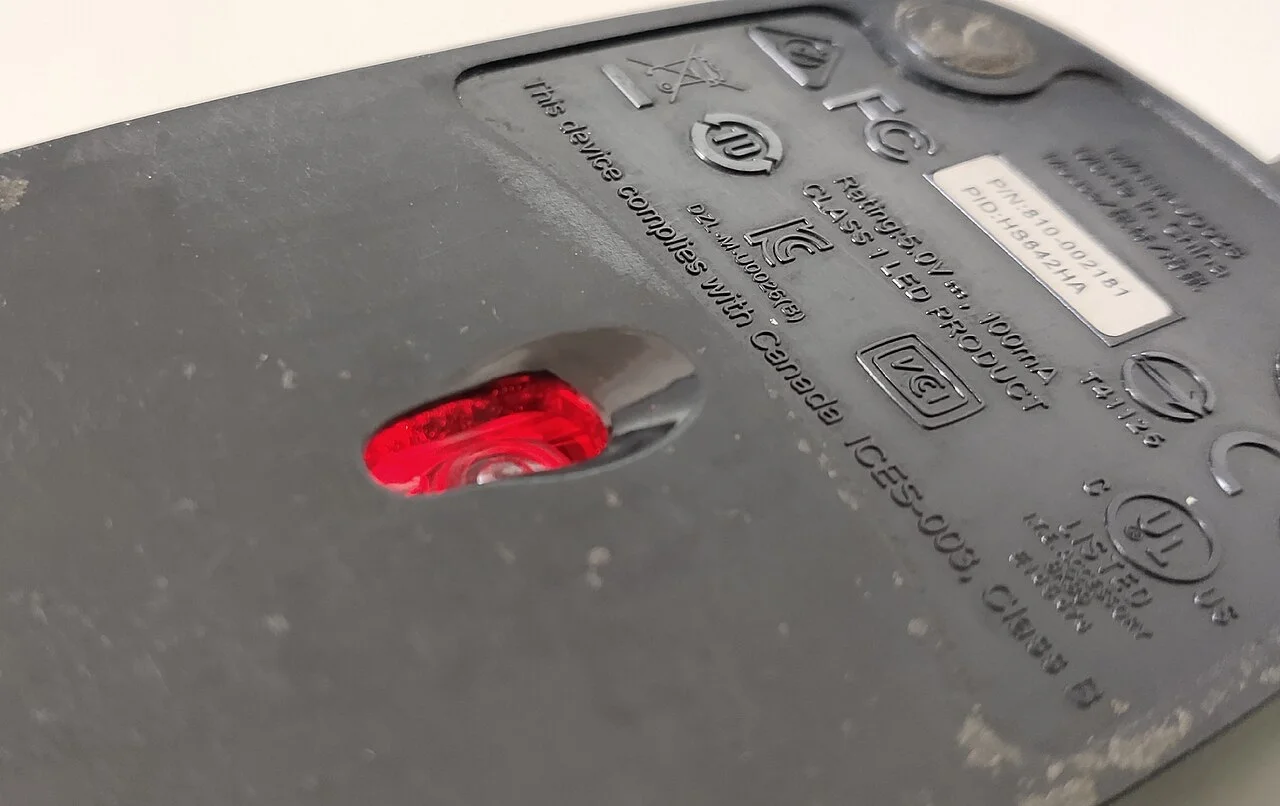
Then check a point farther along the glass or try a different ordinary surface. If the failure stays with the original patch, grit or a reflection can matter. A sensor opening with a visible fibre can also produce confusing symptoms. Check it with the mouse disconnected or powered off and use the manufacturer’s ordinary cleaning instructions. A lens or window can be scratched by probing inside. Some mice expose an opening without exposing the sensor itself. Treat what you see under the body as a reason to check the guide for that model, rather than assuming every opening is made the same way.
If a button and scrolling wheel also stop responding at the same time, check the connection first. A wireless link, battery or sleeping device can interrupt several parts of input together. Use a charged battery where applicable, and perform the surface comparison again when the other controls are stable. A wired device still depends on its port and cable. Move those as little as possible during the surface test so that a change at the cable does not appear to prove something about the mouse pad.
For a useful record, separate the test into observations you can reproduce and conclusions you are trying to draw. “Painted desk, smooth line; glass, three stalls out of four” is better evidence than “mouse sensor is broken.” If a second mouse works on the glass, the first may still be behaving within its normal design. If both fail on matte paper, look at the connection or computer before buying another surface. The pattern of the results can point you to the next check without requiring a full explanation of every part.
A sensor count and a screen distance differ
The motion estimate inside the mouse is reported as displacement along two axes. Software on the computer can use those counts to move the pointer. The number of counts produced for a given physical distance and the number of screen pixels affected by a given input are separate quantities. A setting for pointer speed can change the second one while leaving the underlying sensor behavior in place. Switching applications can change what movement means again if a game or drawing tool uses its own input settings.
This deserves a test because very different problems can feel like the same one. On a reliable surface, move a fixed distance slowly and then quickly. Does the pointer cover an unexpectedly different distance while moving smoothly in both tests? Pointer acceleration or the receiving app may explain it. Does the pointer sit still during a continuous hand motion and then catch up in a jump on one particular patch? Missing or erratic displacement is better evidence for a tracking or connection problem. The test is strongest when you repeat it without changing more than one setting.
A specification sometimes quotes counts per inch, often marketed as DPI, or a maximum speed across the surface. One number describes how fine the reported displacement can be under suitable conditions; another concerns what happens when movement is fast. Neither says on its own how successfully the device will follow the polished corner of your desk. For ordinary use, once movement feels comfortable, the surface and the distance at which tracking ends as the mouse is lifted can be more noticeable than a large advertised maximum. Someone who frequently reaches the edge of a small pad has a different use pattern from someone who rarely picks the mouse up.
The interval at which the computer receives a report is another separate figure. A mouse can generate regular reports while its estimate of motion is unreliable on one surface. Raising the report rate changes how often the receiver has an opportunity to see an update. It cannot give the sensor useful detail below the device. Check one ordinary configuration with a stable connection before interpreting specifications that describe different stages of the same short trip from the sensor to the pointer.
Choose a fix that matches the result
If paper fixes the problem consistently, a stable matte pad is a practical solution. Its colour alone is poor evidence. Texture, finish and how it stays in place matter more than whether it is dark. Check whether the pad leaves enough room for the gestures you use. A good tracking patch that slides across the glass under pressure creates a new source of frustration. Try a short ordinary session before deciding on a mouse or surface based on a single sweep.
There are reasons to choose hardware designed for the desk itself. A meeting room or shared area may use glass because it is easy to clean, and a separate mat may disappear every time the space is reset. For that setting, confirm suitability for the actual glass with the device maker or a test. Glass tops differ in thickness, finish and what sits below them. A model described as glass compatible still has operating conditions. The claim is more useful when the intended type is described and the test resembles the place where you will use it.
Keep the successful combination simple enough to recognize later. Set the speed where ordinary movement feels comfortable, make sure the new surface stays still, and try one long motion from the centre to the edge of the screen. Repeat the troublesome stroke that brought you here. The small piece of floor beneath the device can now supply consistent detail to a measurement you never have to watch directly. As soon as the pointer follows the hand again, the glass that made the problem so noticeable can go back to being only the desk.